From teacher allocation to a published timetable
A timetable is only the last step. Most of the work, and most of the mistakes, happen before anyone presses Generate: a teacher allocated two sections more than her load, a subject that needs a lab in a school with one lab, a section nobody remembered to add. Here are the six steps in the order that catches each mistake before it costs an afternoon, and what happens after the timetable is published.
1. The year and the bells
Create the academic year with its first and last day and working days, then the bell schedule: periods and breaks, per campus if you have more than one. Kindergarten and early grades can have a shorter day with no free periods. Everything that follows hangs on this grid, which is why it comes first.
2. Sections, and the students in them
Add the sections: 7-A, 7-B, and so on. Adding them in bulk (KG1 to Grade 3, A to D, mixed) takes one dialog. Then fill them: auto-fill places a grade's students into its sections, to capacity, a fixed number per section, or evenly, keeping brothers and sisters together and respecting a boys' or girls' section. Class lists can also be imported from Excel.
3. Subjects and the curriculum
Subjects first, with the room type they need, so Science asks for a lab and PE for the gym. Then the curriculum: periods per week of each subject for each grade, with section exceptions where a section differs, and double periods where a lesson needs two periods together.
4. Teachers
Import them from Excel (name, employee number, employment, weekly load, daily maximum, the subjects they teach) up to 1,000 at a time, or add them one by one. Mark the periods a teacher is not available. Invite the ones who will use the app, and they see their day and week on their phone once the timetable is published.
5. Rooms
Classrooms, labs, computer rooms, gyms and libraries, each with a type. Give every section a home room, with one click for all sections at once, so that ordinary lessons have somewhere to go and only lab and gym lessons compete for special rooms. Block the periods a room cannot be used.
6. Allocation
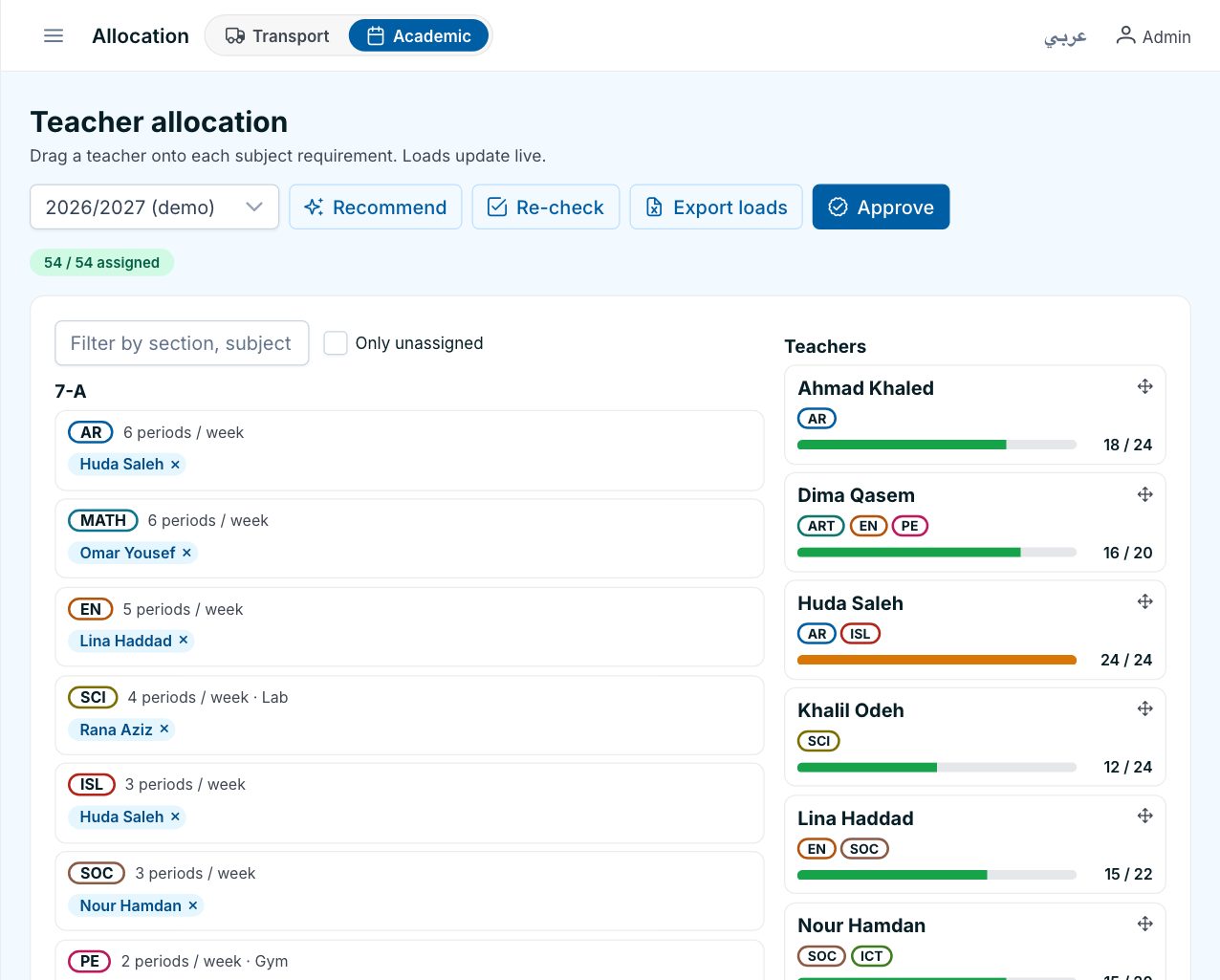
Now assign teachers to subjects in each section. Schooliy proposes an allocation from the teachers' subjects and loads, and you accept or change it. Overloads show immediately: a teacher over her weekly load, a lesson without a qualified teacher, a section with a subject nobody is allocated to. In grades with a class teacher, the class teacher takes every subject except the specialists' automatically. Nothing goes to the generator until this board is clean.
Generate, check, publish
With the six steps done, generation takes minutes. The run shows what it placed and lists what it could not, with the reason. Fix the few by hand in the studio, lock what must not move, regenerate the rest, then validate. Publishing creates a version: a published timetable never changes behind your back, each new version shows exactly what changed, and only the teachers and parents whose lessons moved are told. A school admin publishes; a coordinator can, if the admin allows it.
During the year
Daily life happens on the cover board: absences, substitutes, room changes, cancellations. The published timetable stays as it is until you publish a new version, and every change of the day reaches teachers, students and parents on their phones. A setup guide in the dashboard tracks these steps for you, shows which are done, and links each page to its help.
Questions
How long does the setup take?
With the lists ready in Excel, a day. The imports do the typing, and the guide shows what is still missing.
Can a coordinator publish?
Only if the school admin allows it in the school settings. Otherwise the coordinator prepares and the admin publishes.
What happens when we change the timetable mid-year?
You create a new version from the published one, change what you need, and publish it with a start date. The difference between versions is shown before you publish.
See it on your own lists
A free demo on WhatsApp, in English or Arabic. We set Schooliy up with your school’s own students, buses and classes.